



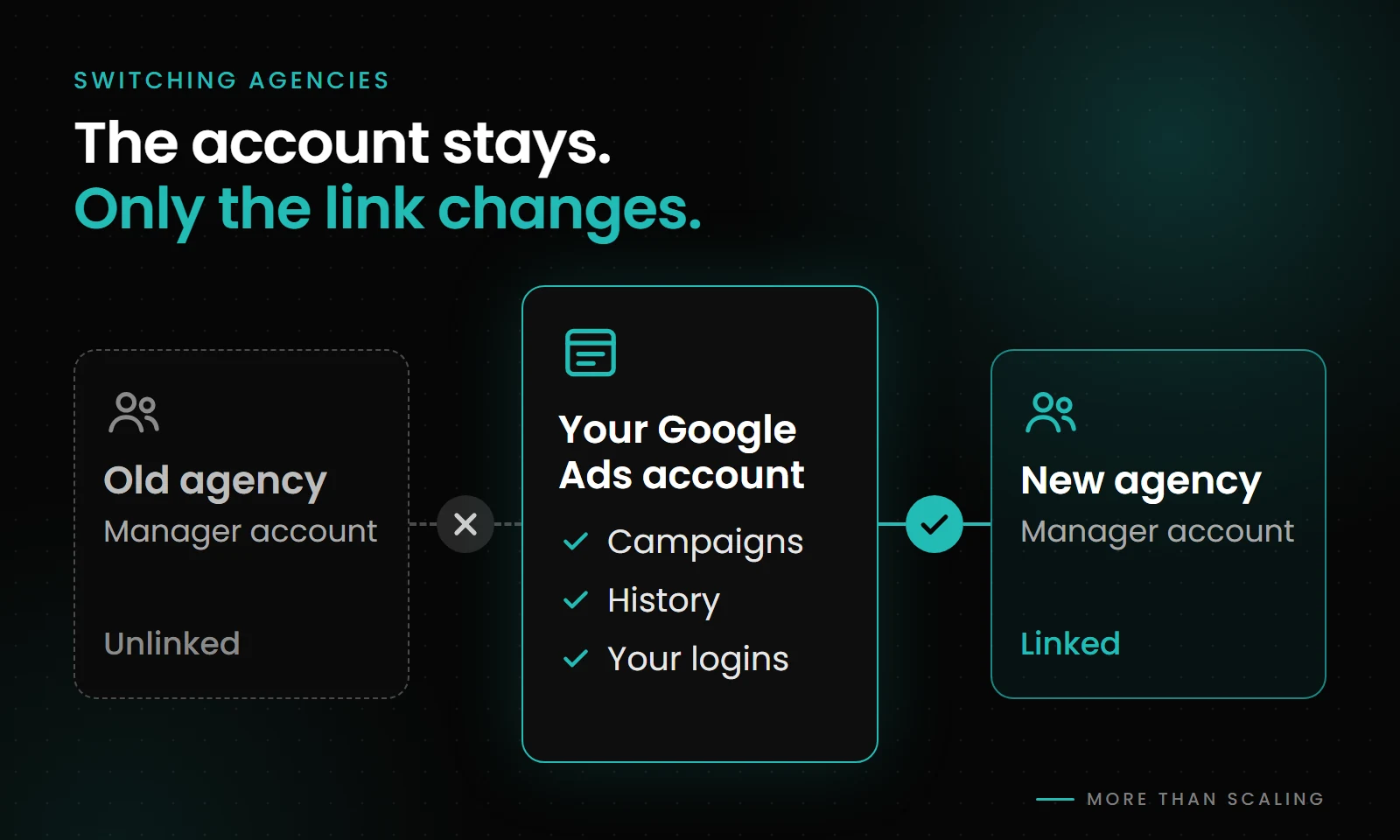
If you are working out how to transfer a Google Ads account to a new agency, the first thing to know is that nothing actually moves. The account stays where it is, with its campaigns and history. What changes is who has access to it, who pays for it, and which tools are connected to it.
That is good news, because it means a switch can happen with no gap in your advertising. This guide explains the three kinds of transfer, the checks to make first, the steps for moving to a new agency, and a 30-day timeline you can follow.
Table of Contents
- What “Transferring” a Google Ads Account Really Means
- Before You Start: Five Things to Check
- How to Transfer a Google Ads Account to a New Agency
- What Not to Change During the Transition
- How to Transfer Ownership of a Google Ads Account
- Moving Out of an Agency-Owned Account
- A Sample 30-Day Transition Timeline
- Frequently Asked Questions
- Planning a Switch?
What “Transferring” a Google Ads Account Really Means
People use the word transfer for three different jobs. Work out which one you have before you start.
| Situation | What changes | What stays the same |
|---|---|---|
| Switching agencies | The manager account linked to yours, and the agency users | The account, campaigns, history and your own logins |
| Changing the owner | The admin users, the billing details and the business named on the account | The account and its campaign history |
| Leaving an agency-owned account | Everything: you move to a different account | Only what you copy or rebuild |
The first situation is the most common and the easiest. The third is the hardest, and it is covered near the end of this guide.
Before You Start: Five Things to Check
Most problems in an agency switch come from something the old agency controlled that nobody noticed. Check these five areas before anyone is added or removed.
- Admin access. A person in your business needs admin access to the account. Only an admin can accept a new manager account or remove an old one.
- Billing. Find out whether you pay Google directly or the old agency pays on your behalf.
- Conversion tracking. Ask whether your conversion actions live in your account or in the agency’s manager account.
- Audiences. Ask whether any remarketing lists are shared from the agency’s manager account.
- Automation. List the scripts, rules and reports that are running, and where each one runs from.
Write the answers down. They decide what has to be rebuilt before the old agency leaves. If you have not told the old agency yet, our guide on how to fire an agency covers notice and the handover.
How to Transfer a Google Ads Account to a New Agency
Step 1Send the new agency your customer ID
Your customer ID is the ten-digit number shown at the top of your Google Ads account. The new agency enters it in its manager account to send you a link request. You do not need to share a password, and you should not.
Step 2Accept the link request
Go to Access and security in the Admin menu and open the Managers page. The request appears there, and an admin can accept it.
Two details from Google’s guide to linking accounts to a manager account are worth knowing. First, linking leaves your account unchanged, with its history intact. Second, the new manager does not get administrative ownership by default. Ownership has to be switched on from inside your account, so it stays your decision.
Step 3Let the two agencies overlap
Google allows an individual account to be directly managed by up to five manager accounts, so the new agency can be linked while the old one is still there. Use that. A short overlap lets the new team learn the account before it has to run it.
Set one rule for the overlap: only one side makes changes. The simplest version is that the old agency keeps running the account until a named date, and the new agency only reads and audits until then.
Step 4Sort out billing
If your own card or invoice pays Google, skip this step. If the old agency’s manager account pays for your ads on monthly invoicing, set up a new billing arrangement before that manager is unlinked. Google states that an account in that position stops serving ads once the paying manager is removed.
Step 5Rebuild what belongs to the old manager account
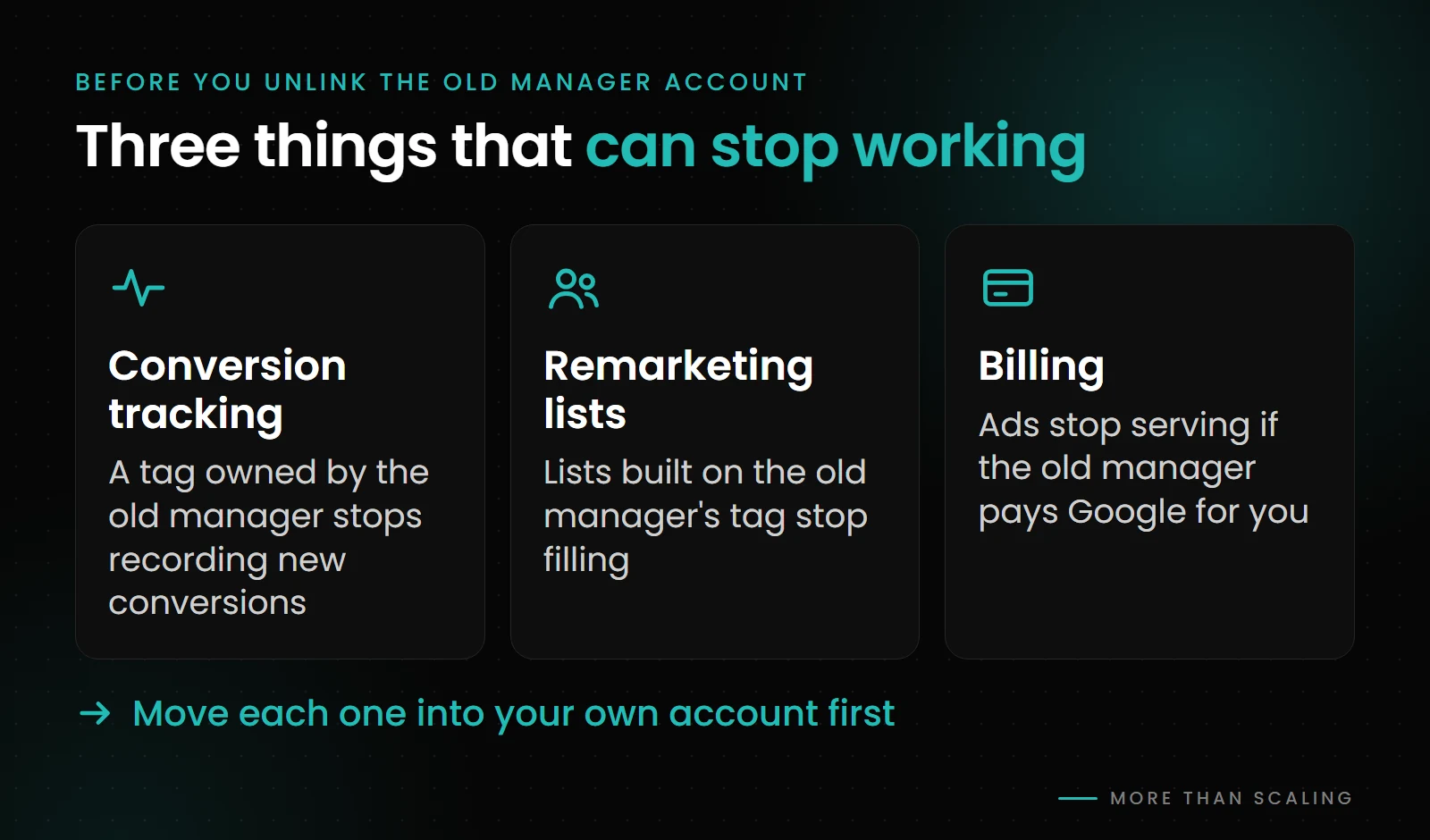
Three things can stop working when a manager account is unlinked. Google lists them in its article on unlinking accounts from a manager account.
- Cross-account conversion tracking. A conversion tag owned by the manager account stops recording conversions for clicks that happen after the unlink. Create the conversion actions in your own account first and confirm they are recording.
- Shared remarketing lists. Lists that depend on the manager’s tag stop filling, and ad groups that target those lists stop running. Build the audiences in your own account.
- Billing. As covered in Step 4.
Check scripts and scheduled reports as well. Anything that runs from the old agency’s side goes with them.
Step 6Add the new agency to your other tools
Google Ads is only one login. Give the new agency access to Merchant Center, Google Analytics, Tag Manager and your store or CRM where they need it. Add them as users under your ownership instead of sharing your own login.
Step 7Unlink the old manager account
On the agreed date, go back to Access and security, open the Managers page, choose Remove access next to the old manager account and confirm the unlink. Google shows a preview of what will be affected before you confirm. Read it. Then remove the old agency’s individual users and take away their access to your other tools.
Step 8Watch the first two weeks
Check daily that ads are serving, conversions are recording at a normal rate, and spend matches the budgets you expect. Compare against the numbers you noted before the switch.
What Not to Change During the Transition
The link and unlink do not disturb your campaigns. Big changes made at the same time can. Ask the new agency to hold off on these until the handover is complete and they have a baseline:
- Restructuring campaigns. New campaigns start without the history of the old ones. Our guide to Google Ads account structure explains how to phase a rebuild.
- Switching bid strategies or targets. A new bid strategy starts a learning period, and Google advises against making several target changes within one conversion cycle.
- Changing which conversions are used for bidding. Do this once, deliberately, and not in the same week as anything else.
If results move during the switch, you want to know why. One change at a time makes that possible.
How to Transfer Ownership of a Google Ads Account
Sometimes the account needs a new owner, for example when a business is sold or a founder used a personal email address years ago. There is no transfer button. Ownership follows admin access.
- Invite the new owner as an admin from Access and security. Google’s access levels guide shows what each level can do.
- Wait for them to accept, then confirm they can see the Access and security page.
- Add a second admin if you can. An account with one admin is one lost password away from a problem.
- Update billing so the payment method and business details belong to the new owner.
- Remove the old admin once everything above is confirmed.
Check the business details on the account too. If the legal entity behind the advertising has changed, the billing and verification information should match the new one.
Moving Out of an Agency-Owned Account
If your campaigns were built in an account that the agency owns and will not hand over, you are starting a new account. You can copy campaigns, ad groups, keywords and ads into it with Google Ads Editor, which saves a great deal of typing.
What does not come across is the history. The new account starts without past performance data, conversion history or audience lists. Plan for a learning period, set up conversion tracking before you launch, and bring your first-party data, such as customer lists, from your own systems.
This is also the moment to make sure the new account is created under your own email address, with your own billing.
A Sample 30-Day Transition Timeline
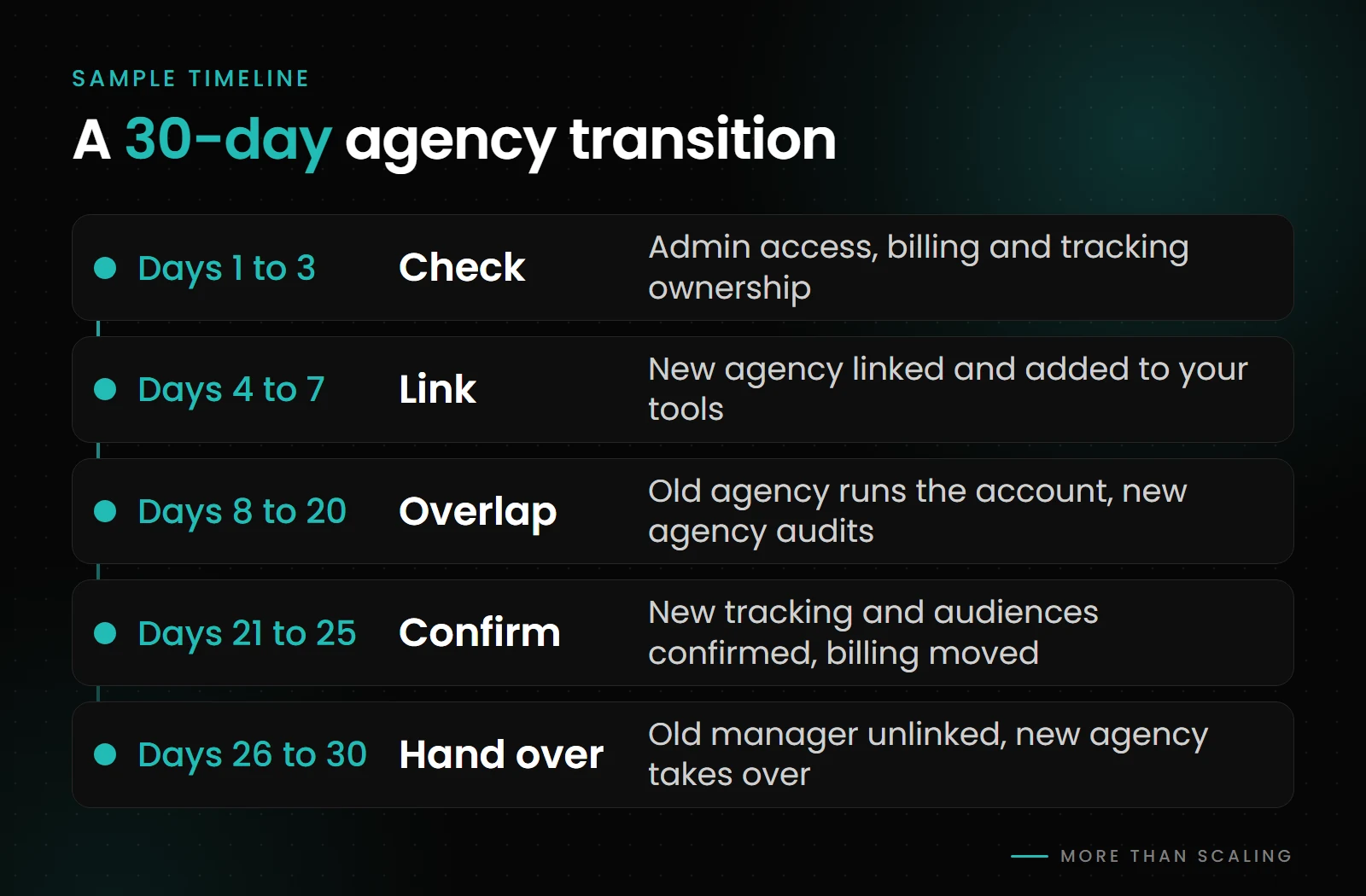
| When | What happens |
|---|---|
| Days 1 to 3 | Confirm admin access, billing and tracking ownership. Record current performance. |
| Days 4 to 7 | New agency sends the link request. You accept it. New agency gets access to other tools. |
| Days 8 to 20 | Overlap. Old agency runs the account. New agency audits and prepares conversion actions and audiences in your account. |
| Days 21 to 25 | New conversion actions and audiences confirmed. Billing moved if needed. Handover call. |
| Days 26 to 30 | Old manager account unlinked, old users removed. New agency takes over day-to-day work. |
Shorten it if your setup is simple. Lengthen it if tracking or billing runs through the old agency.
Frequently Asked Questions
Can two agencies have access to the same Google Ads account?
Yes. Google allows an individual account to be directly managed by up to five manager accounts, so an old and a new agency can be linked at the same time during a handover.
Will switching agencies reset my campaigns?
No. Google says linking a manager account leaves the account unchanged and its history intact, and that an account keeps its campaign history after unlinking. Changes to tracking, structure or bidding are what trigger new learning.
Can I transfer a Google Ads account to a different email address?
Yes, by inviting the new email address as an admin and removing the old one after the invitation is accepted. The account itself stays the same.
How long does it take to transfer a Google Ads account?
The link request takes minutes. A careful switch, with an overlap and time to rebuild tracking or audiences, usually takes two to four weeks.
Planning a Switch?
Once you know how to transfer a Google Ads account safely, the rest is planning. If you are moving to a new partner and want a team that will handle the transition with you, talk to our team. You can also use our questions to ask a PPC agency before you decide, and read our case studies.

